
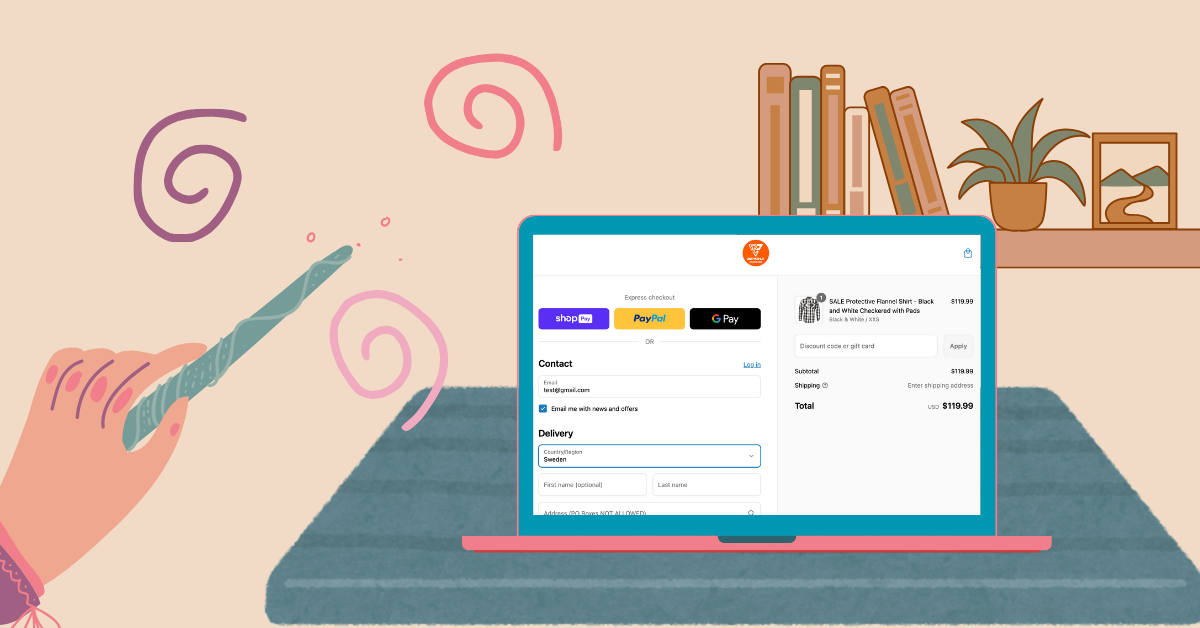
Shopify Checkout is famously secure—and famously rigid. It’s hosted separately from the rest of your website, and the checkout.liquid file isn’t available for you, meaning you can’t dive into the code and go wild, especially if you’re not on Shopify Plus. While Shopify Plus customers enjoy a broad playground of customization through default tools, specialized apps, or custom UI extensions, the rest of us mortals have significantly less freedom.
We’re here to spill the beans on exactly what you can tweak, even without Shopify Plus.
Basic Shopify Checkout Styling
First, let’s cover the basics. Navigate to your Admin Panel → Checkout → Customize, and behold your limited but surprisingly decent toolkit:
- Background colors for your header and main checkout area
- Fonts (though font colors remain stubbornly off-limits)
- Button colors
- Your logo’s position and appearance
- Choose between One Page or Three Page Checkout (Spoiler: always pick One Page—it’s quicker, smoother, and keeps impatient customers from rage-quitting halfway through)
- Activate/deactivate handy features like address autocompletion and the ‘reorder’ button
And… that’s essentially all. Visually, these settings might seem sparse, but with a good eye, you can still create a branded experience that screams “you” without Shopify Plus’s fancy perks.
But let’s say you want a bit more. Maybe you need customers to read crucial warnings—like your “We-don’t-ship-to-P.O.-boxes” disclaimer—or that weekend orders need a couple extra days to process. We’ve got solutions for that too.
Editing Checkout Labels
You can’t fundamentally change checkout fields or add logic, but you can edit labels via your theme’s default content editing. This means you can creatively convey messages directly within existing labels and placeholders. To do so, navigate to your Online Store -> Themes -> Choose your production theme and click on the 3 dots -> Edit the default theme’s content. Now you need to find the Checkout block, and edit the checkout labels text. In our case, this will be the Address1 label.
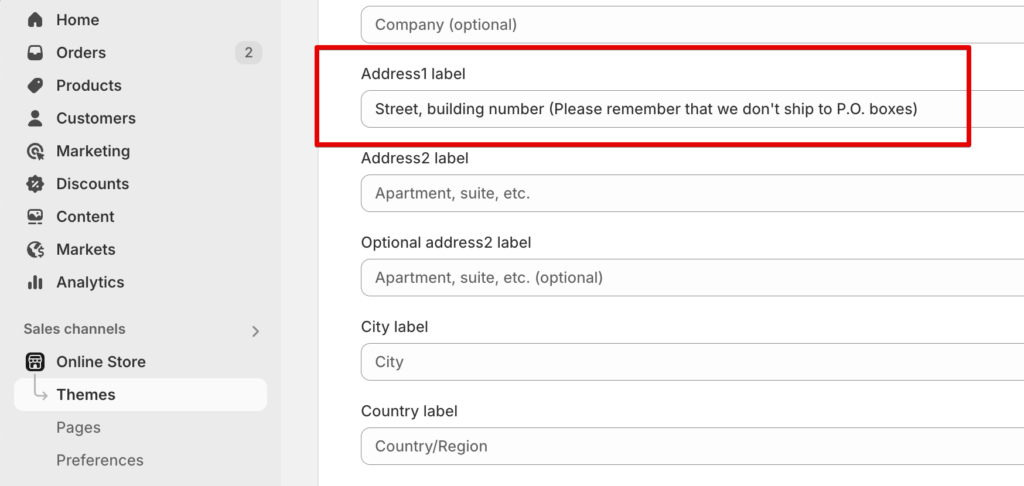
Bingo! Now you can communicate custom messages to your clients on Checkout. Sounds great, right?
Well, here’s the catch: people are notoriously blind to labels. While this method is helpful, don’t rely solely on it for your conversions.

BSure Checkout App
Thankfully, Shopify apps do exist that let you customize checkout without needing the budget for Shopify Plus. Our longtime favorite? The delightfully practical (and budget-friendly) BSure Checkout App.
BSure allows you to:
- Hide or reveal shipping methods based on specific customer behavior
- Change the order or name of shipping methods depending on specific conditions
- Hide or reorder payment options dynamically
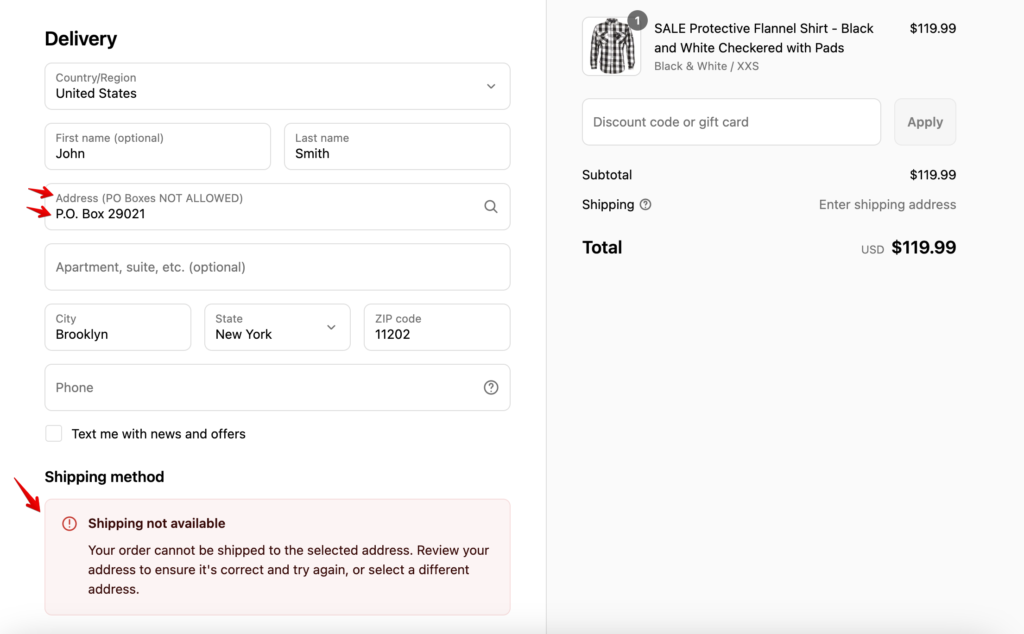
For instance, if customers stubbornly ignore your P.O. box warning, you can punish—I mean, gently guide—them by hiding shipping methods that won’t deliver to their chosen address in case the address contains a ‘PO/P.O box’.
You can also set up renaming your shipping methods depending on the day of the week, and include a warning in the shipping method’s title that the orders placed on weekends will be processed on Monday.
Wrapping It Up
Even though you’re limited in customizing Shopify Checkout without Shopify Plus, don’t underestimate the power of these tweaks. Sure, you can’t add upsells or fancy custom checkboxes, but you’re far from helpless.
Meanwhile, leverage your Cart Page and Mini-Cart strategically. Make them user-friendly, informative, and compelling. Or better yet, hire someone who thrives on navigating Shopify’s quirks (we might know a team).